How to browse and find things.
Browse is where you look things up and keep them tidy: every item, space and collection, with search, sort and filters on top. Here's how each part works, step by step.
One screen for everything you own
Browse lists every item, space and collection in one place. The switcher at the top decides which of them you're looking at.
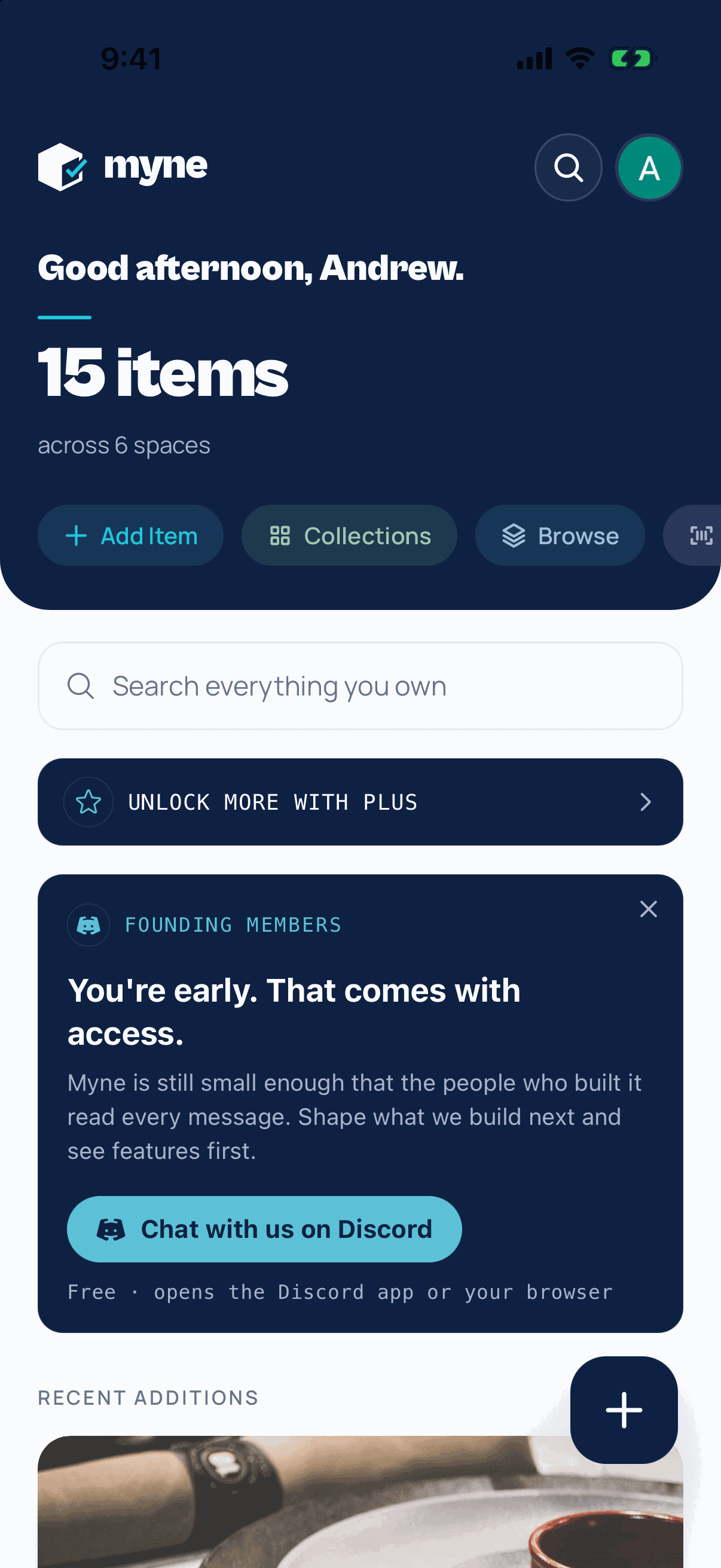 Step 01
Open Browse from Home
Tap Browse in the row of buttons at the top of Home. The search bar on Home searches everything too, if you already know what you're after.
 Step 02
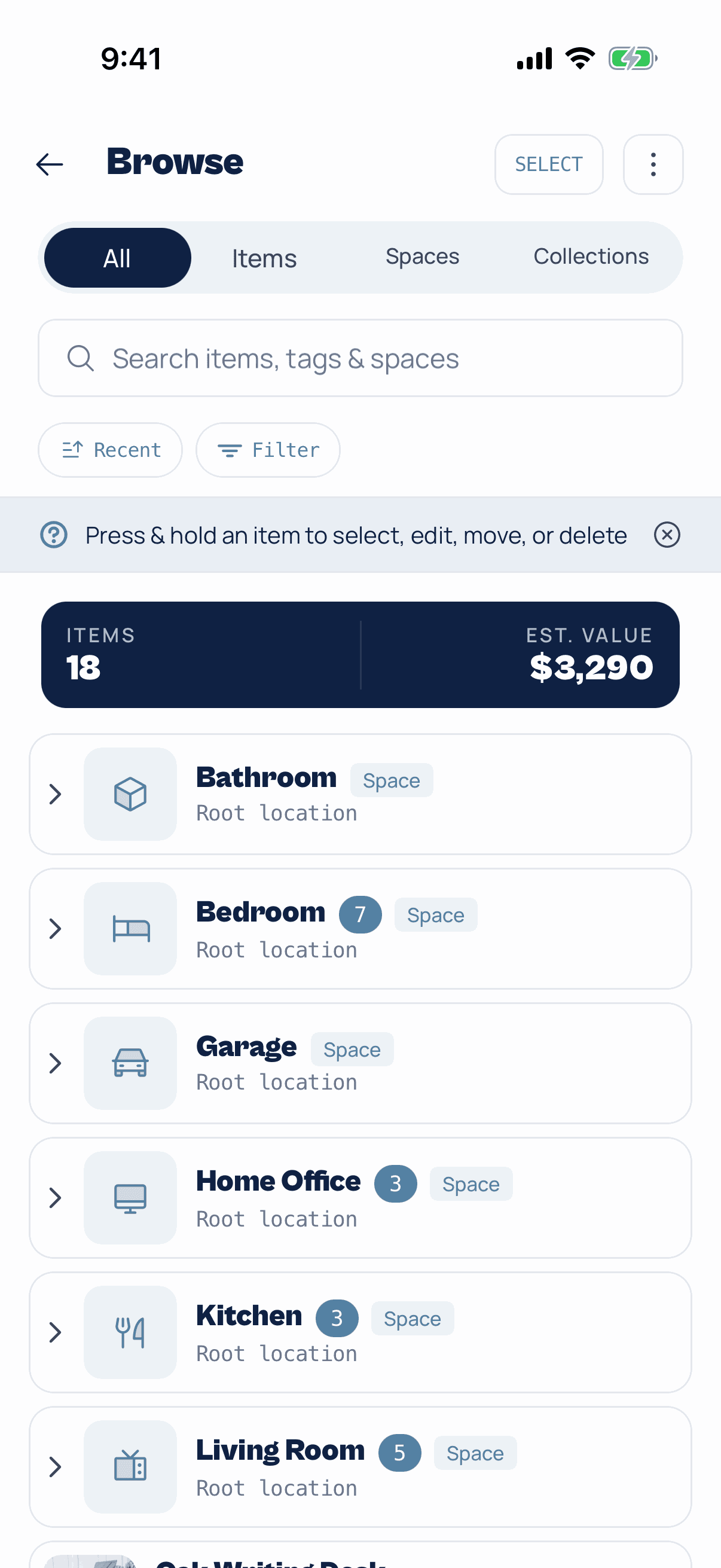
Start on All
All shows your spaces first, then your items. The dark band at the top of the list counts what's showing and adds up its estimated value, so it changes as you search and filter.
Tap a space's left arrow to see the spaces inside it. Tap anywhere else on the row to open it.
 Step 03
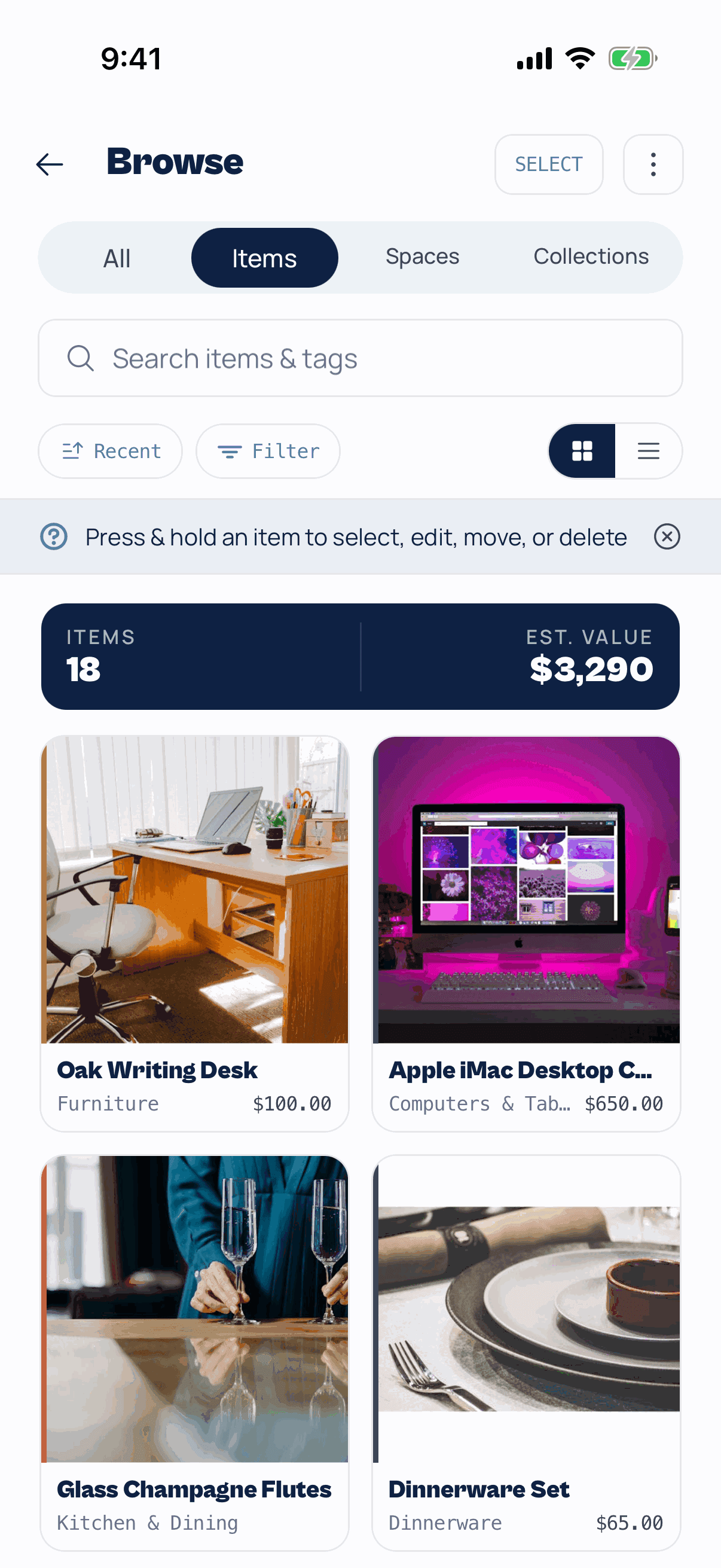
Switch to Items for a picture of everything
Items shows only things, no spaces. The two buttons on the right switch between a photo grid and a list.
The grid is the quickest way to scan by eye. The list fits more on screen and shows each item's category, space and value.
 Step 04
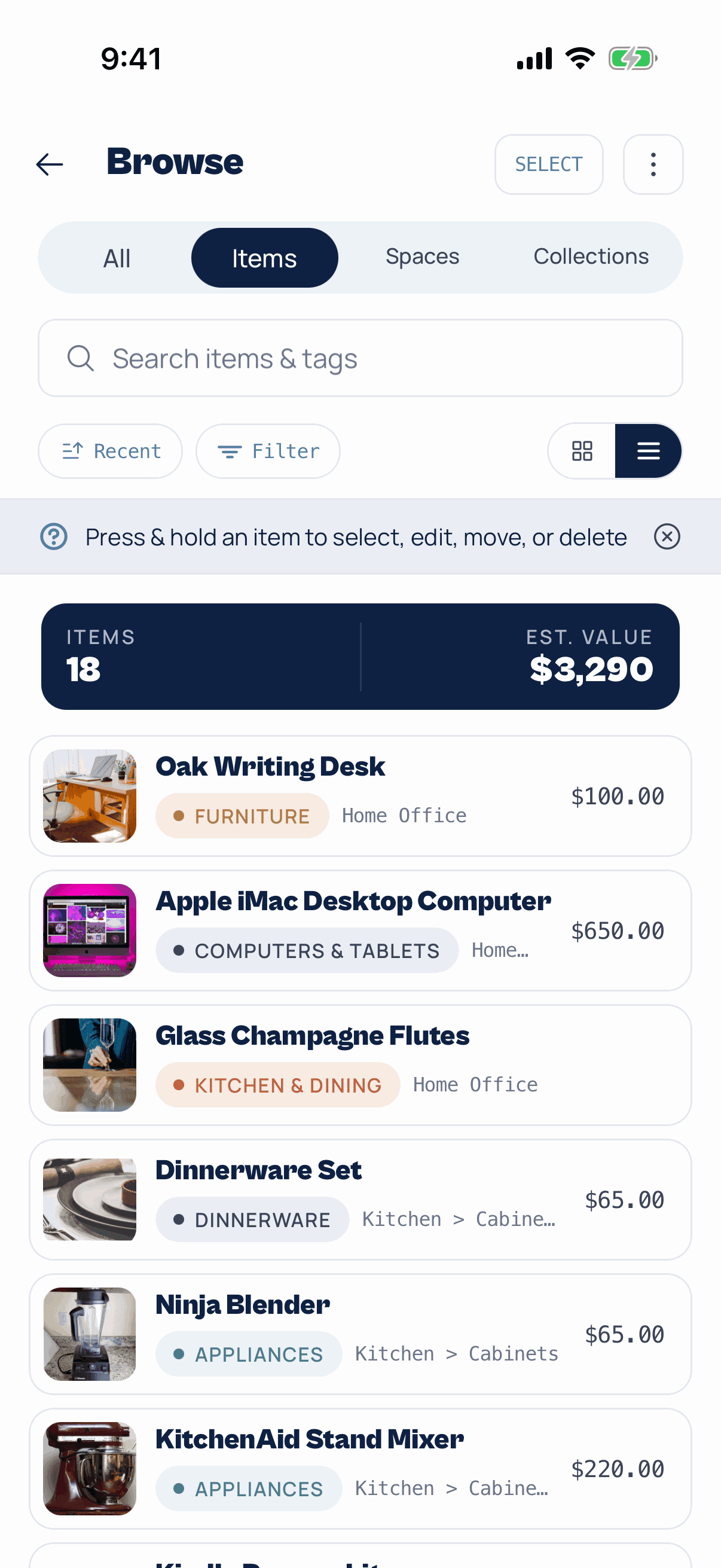
Read the list view
Each row has the photo, name, category and value. The grey text is where it lives: Kitchen > Cabinets means the Cabinets space inside the Kitchen.
 Step 05
Walk your spaces
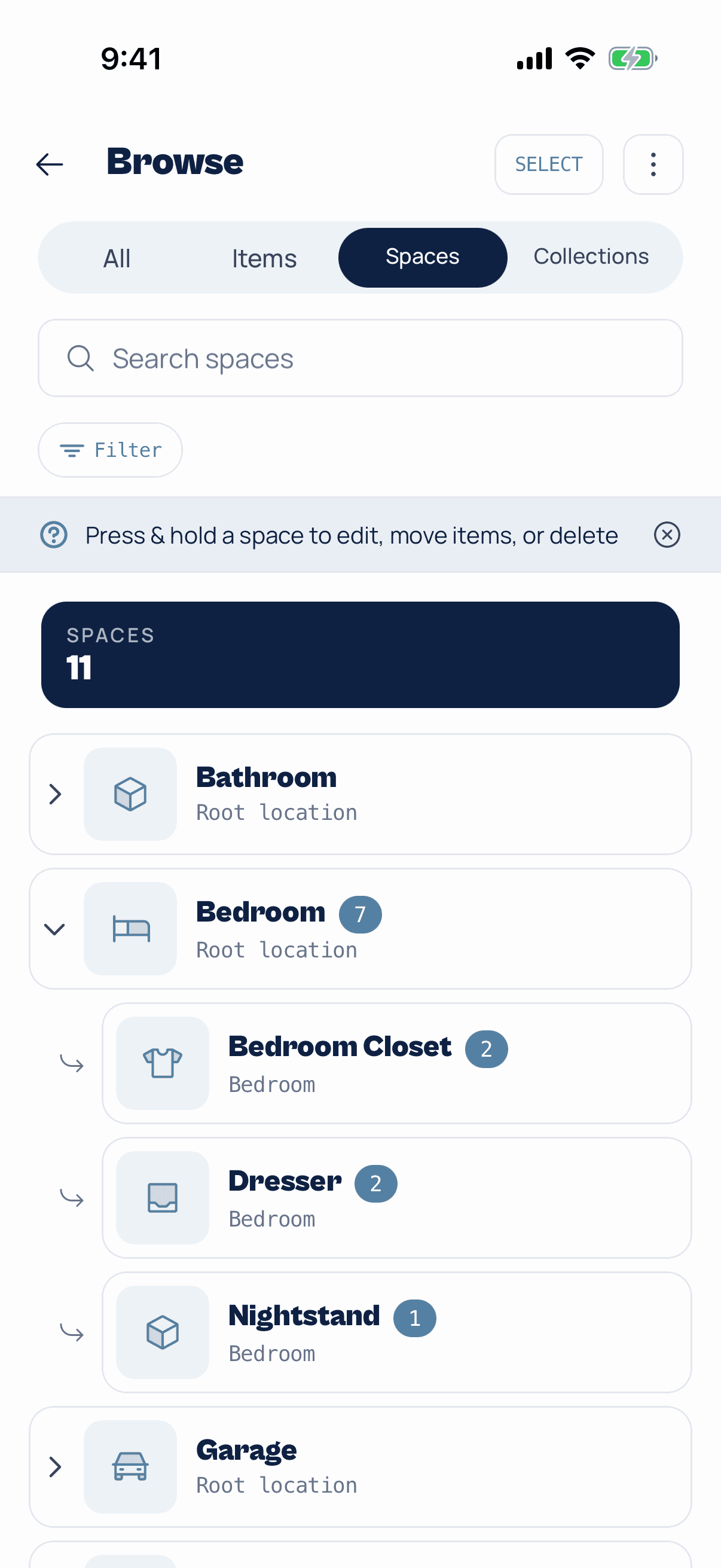
Spaces shows your rooms, closets and boxes as a tree. The number beside each one is how many items it holds. Tap the arrow on the left to open up the spaces inside, like the closet, dresser and nightstand in a bedroom.
Press and hold a space to edit it, move its items somewhere else, or delete it.
TipThe Collections tab works the same way for your collections. See the collections guide.
Find one thing fast
Search, the sort button and filters all work together, on whichever tab you're on.
 Step 06
Search by name or tag
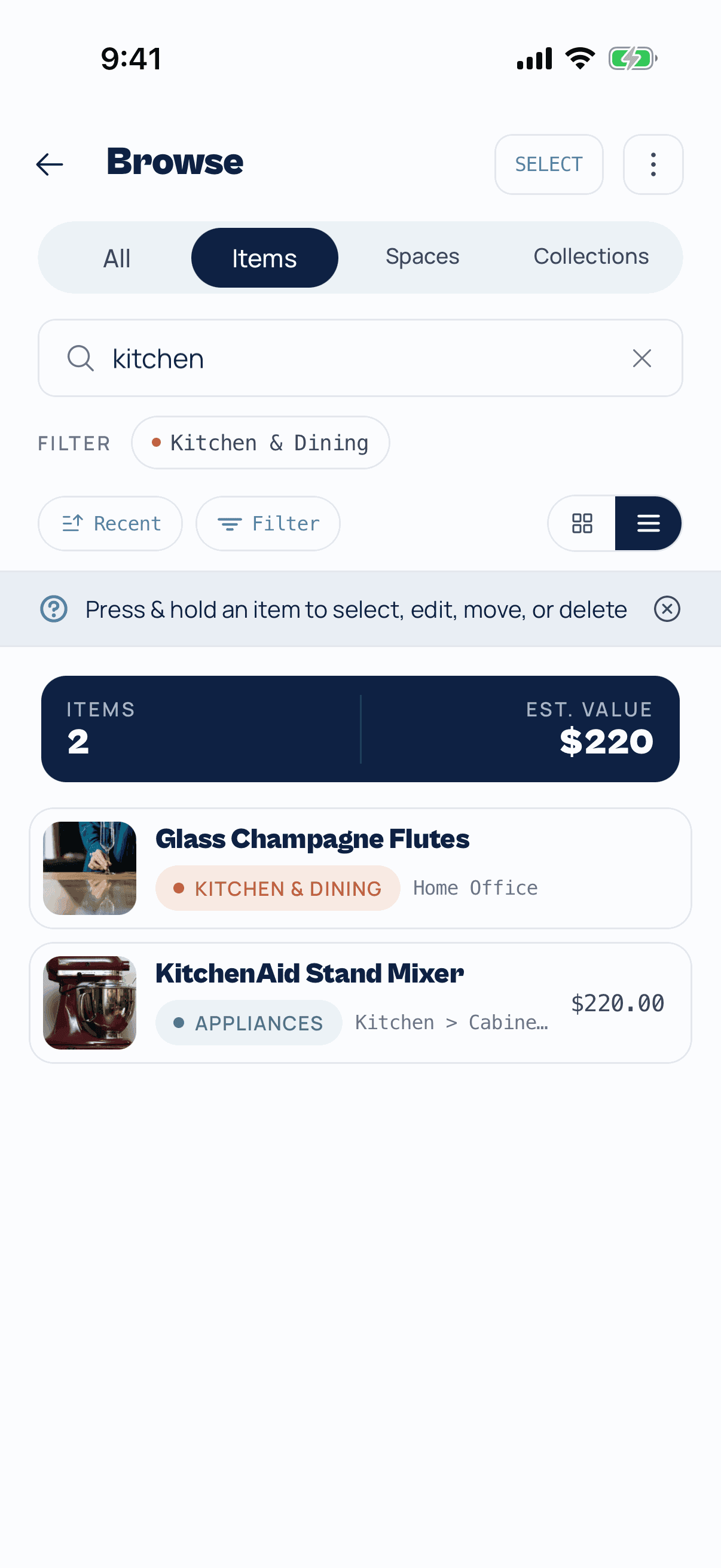
Type in the search bar. It matches item names and tags, and it forgives typos. If your words match a category, Myne offers it as a filter you can tap.
Tap the × in the search bar to clear it.
TipTap Recent to change the order. It steps through Recent, Oldest, A–Z and Z–A. The Spaces tab keeps its tree order, so the button hides there.
 Step 07
Open Filter to narrow it down
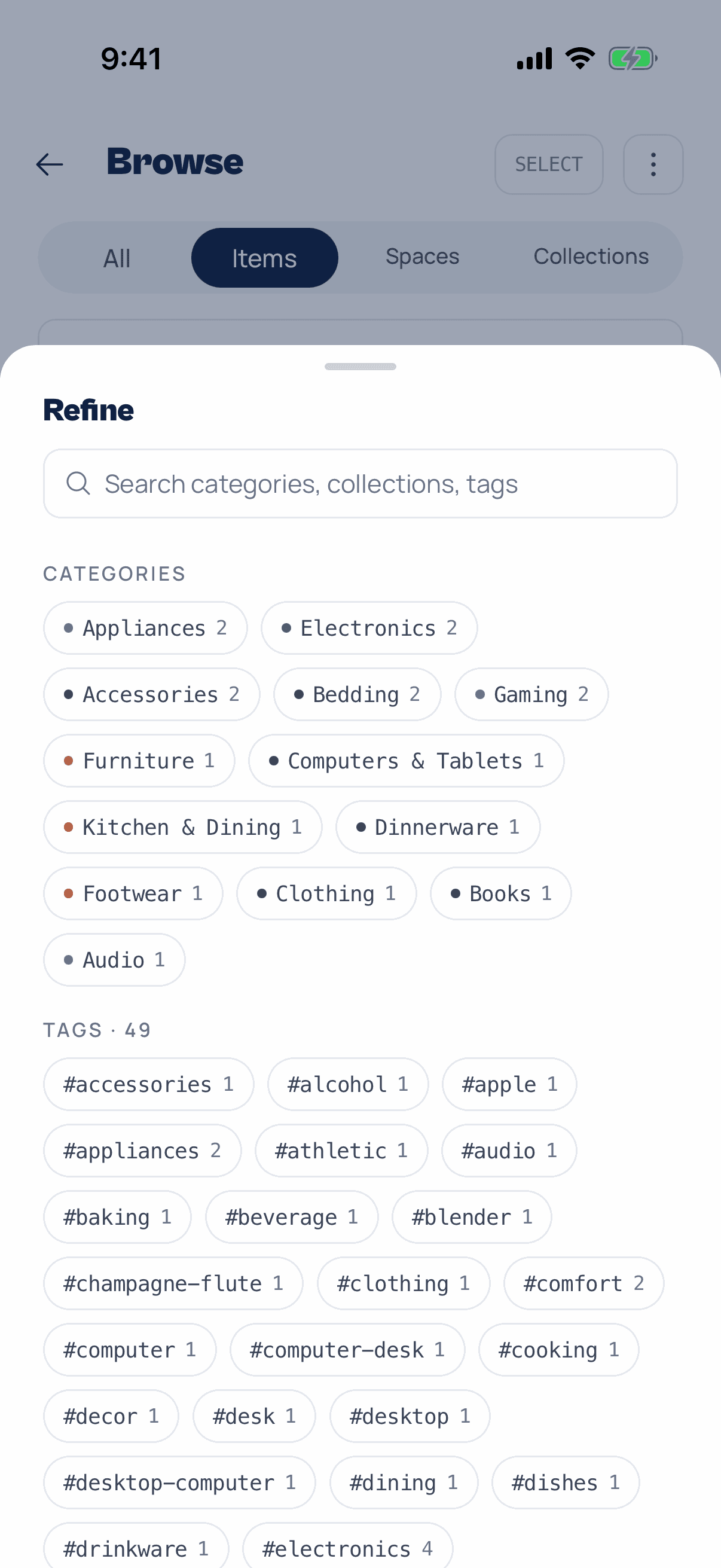
Tap Filter for a sheet of every category, collection and tag you use, each with a count. Tap as many as you like. There's a search box at the top for long tag lists.
Picks in the same group widen the list: Appliances or Electronics. Picks in different groups narrow it: Appliances and in the Kitchen Gear collection.
 Step 08
See the results and clear them
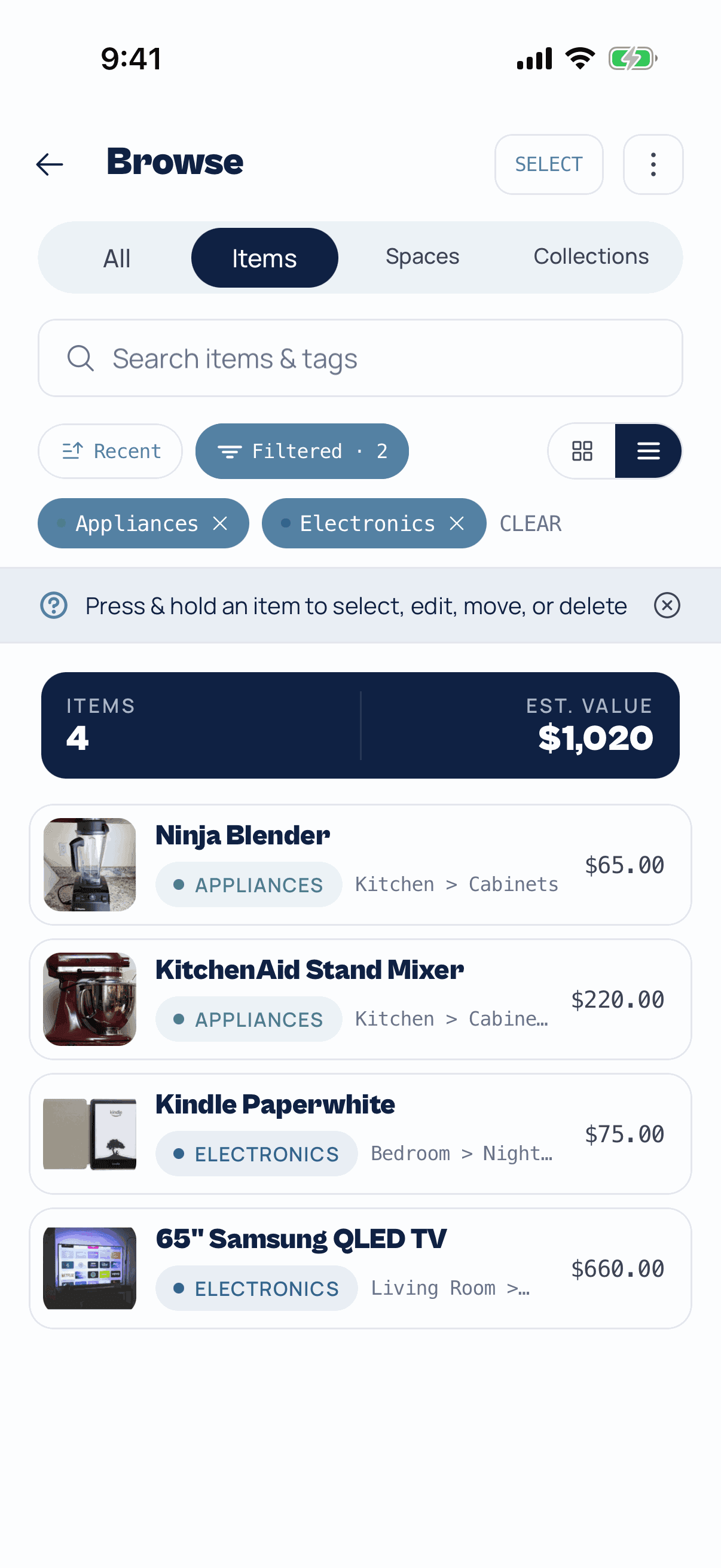
Your filters show as chips under the search bar. Tap the × on a chip to drop one, or Clear to drop them all. The band updates to the count and value of what's left.
Category, tag and collection filters only narrow items. On All they hide your spaces while they're on, and on the Spaces tab a one-line note explains why the list didn't change.
Edit, move and tidy up
You don't need to open an item to change it. Press and hold any row for the common actions, or select a batch and change them together.
 Step 09
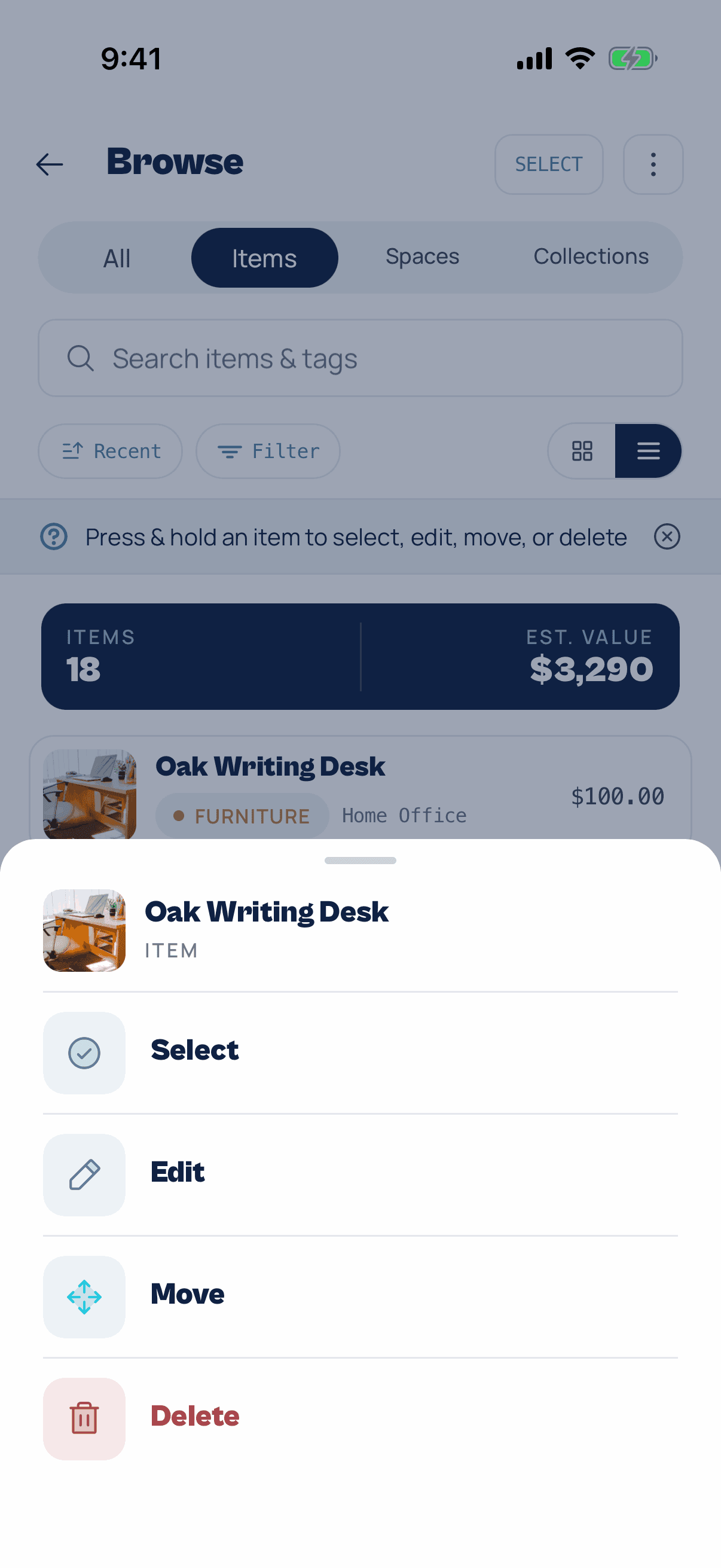
Press and hold an item
A sheet opens with Select, Edit, Move and Delete. Edit opens the item ready to change. Move sends it to another space. Select starts picking several items.
 Step 10
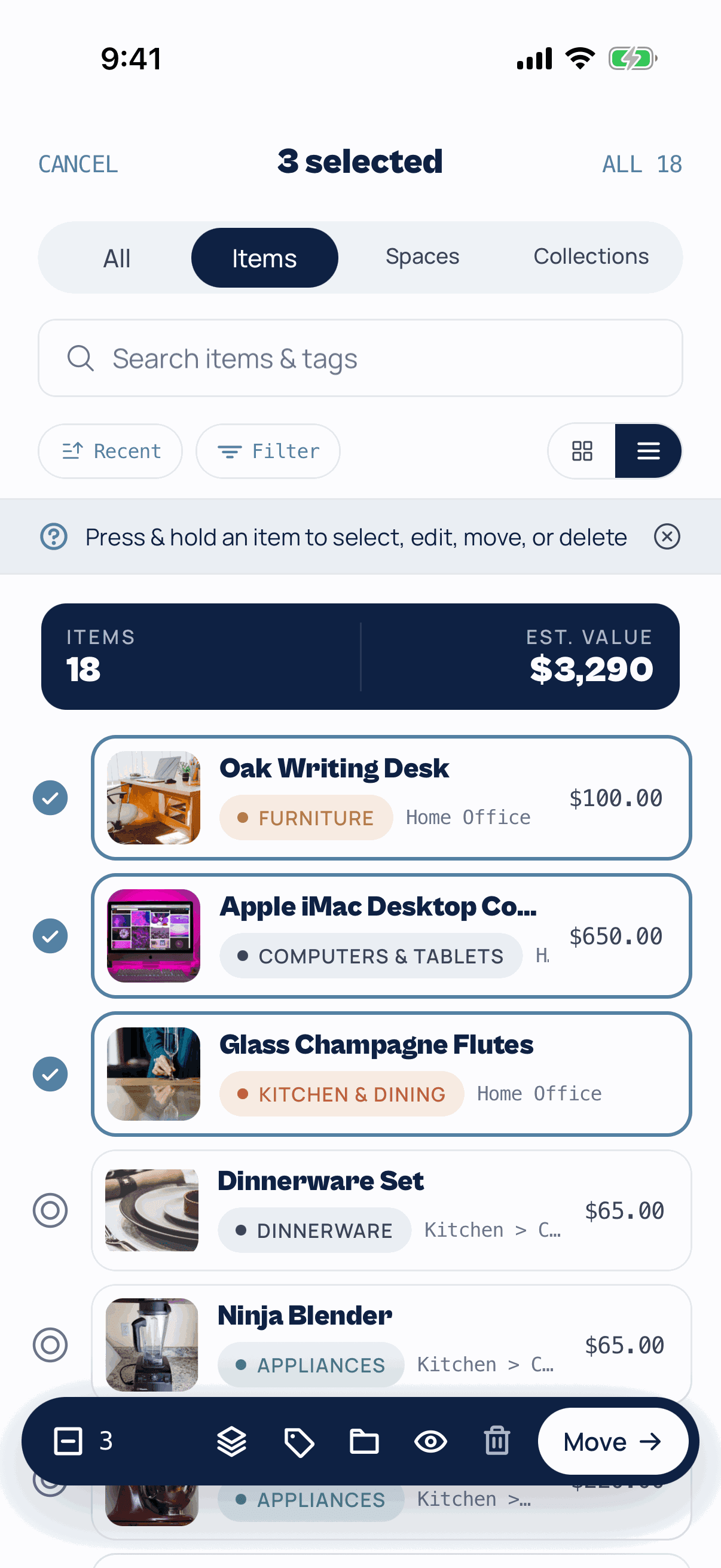
Select several and act on all of them
Tap rows to tick them, or tap All in the top corner to select everything showing. You can search and filter first, then select all of the results.
The bar at the bottom works on every selected item: Move to another space, add to a collection, add tags, set a category, make public or private, or delete. Tap Cancel when you're done.
TipSelect mode lists items only. Spaces step aside while you're picking.
Keep going
How to add items
One thing at a time or a whole shelf at once, from the camera, your photo library, or a barcode.
Read →How to use collections
Group things that belong together, even when they live in different rooms, and share them.
Read →Stuck on something else? The support page answers the common questions, and you can write to us from Settings in the app.
Know where everything is.
Add things once and find them in seconds, by name, tag, room or collection. Free to start.